Skip to main contentImporting your data is the first step toward finetuning models and building agents. The Portal makes it easy and quick to upload, examine, and augment your data.
The Import Data feature can be accessed from two places:
- Global view: Forge > Compositions > Datasets
- Application view: select an existing Application, drill into the Intents tab, and select an Intent. From there, click on the Datasets tab
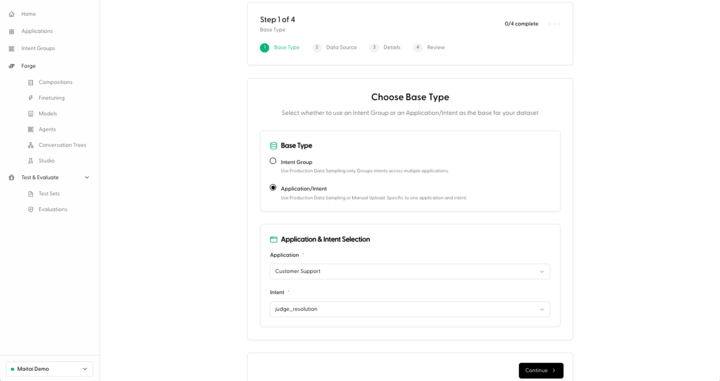
From either view, click on the New Dataset button. If you are coming from the Global view, you will have to choose an Application and Intent to assign the dataset to. You can also create a new Application and Intent using the dropdown if necessary.
Manually Upload a Dataset
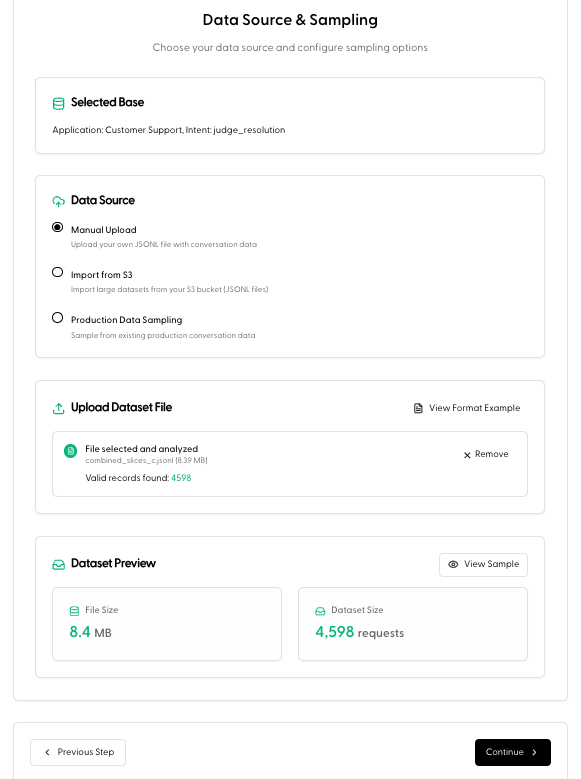
- Select Manual Upload under the Data Source options.
- Under Upload Dataset File, select a JSONL dataset file from your computer. Hit Continue.
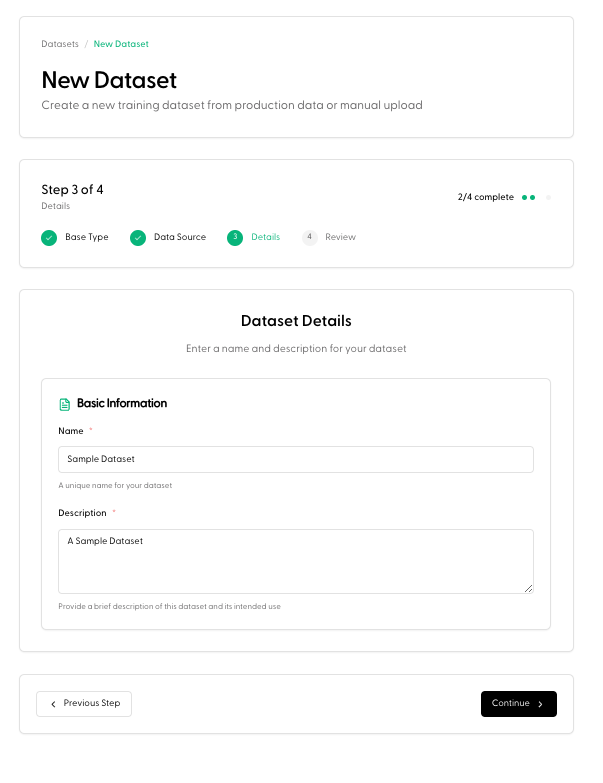
- Under Basic Information, enter a Name and Description for the dataset. Hit Continue.
- Review the Dataset Summary, and click Create Dataset.
Import from S3
- Select Import from S3 under the Data Source options.
- Enter the S3 URL (Add the AWS Region and File glob if necessary).
- Copy and paste the Bucket Policy script into the Permissions section in your AWS account. Replace
YOUR_PREFIX with the folder path WITHOUT a leading slash (example: data/exports). If you want to grant access to the bucket root, use an empty prefix and remove the prefix condition.
- Click Validate Access in the Portal. Hit Continue.
- Under Basic Information enter a Name and Description for the dataset. Hit Continue.
- Review the Dataset Summary, and click Create Dataset.